People in travel photos
Remove a passerby when there is enough street, sky, sand, wall, or landscape around them for the AI to infer what is behind.
Remove any object from a photo online: upload, brush over the person, sign, or clutter, and preview the result before you commit. Your first successful cleanup is free.
JPG, PNG, WebP, or HEIC · Up to 30 MB · Large photos auto-optimized
 Demo · Before
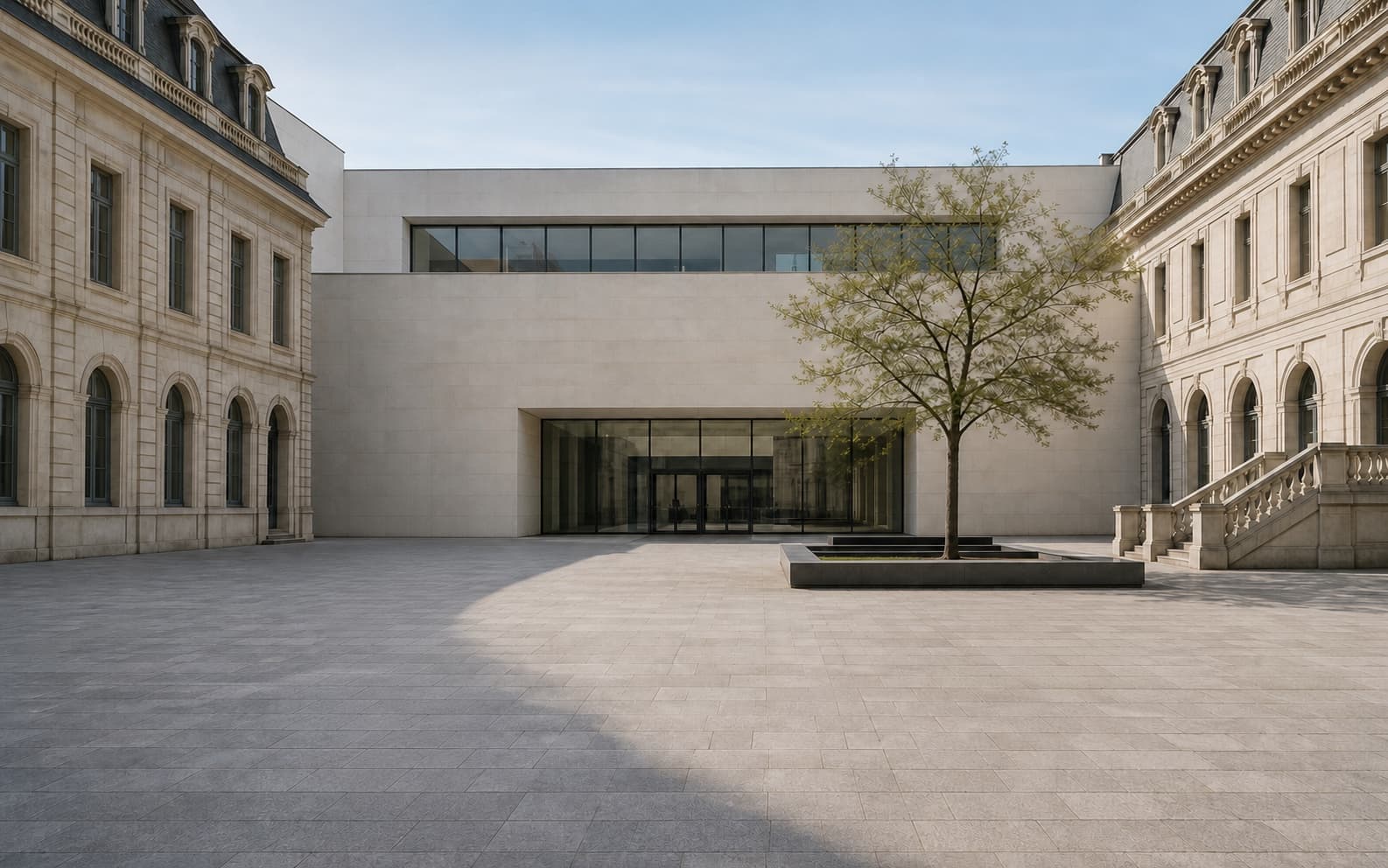 Demo · Before
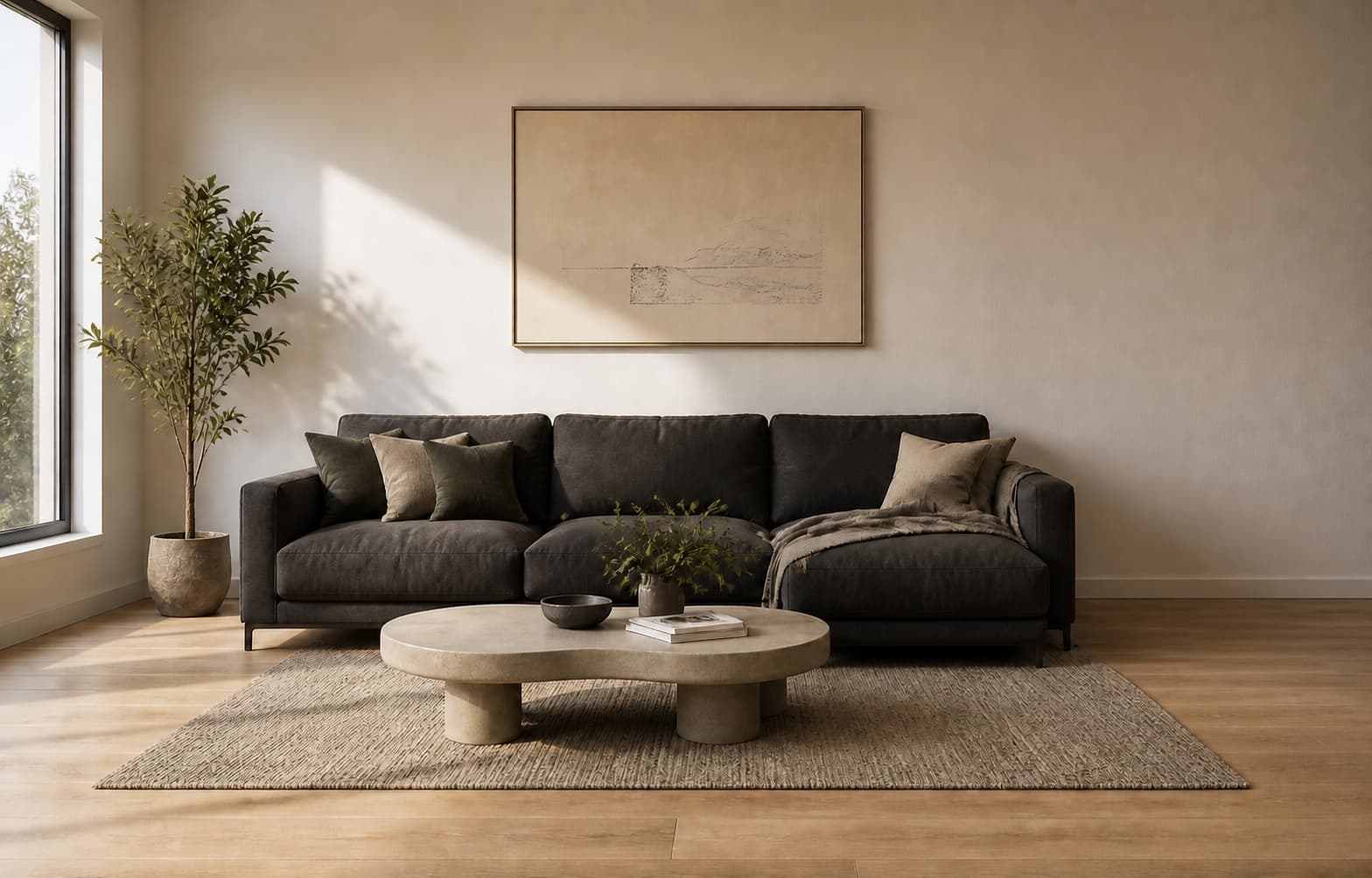 Demo · Before
Start with a photo and a clear target. The same workflow works for a loose object, a person in the background, a sign, or a small piece of clutter.
Step 1
Upload a supported image up to 30 MB. Large photos are optimized into the editor's 1200 × 760 working canvas.
Step 2
Resize the brush and cover the object completely. Keep nearby details visible so the AI has useful background context.
Step 3
Run cleanup, compare against the original, and download only when the rebuilt edge and texture look natural.
The editor is general purpose, but different backgrounds create different levels of difficulty. Begin with a small pass and judge the actual result.
Remove a passerby when there is enough street, sky, sand, wall, or landscape around them for the AI to infer what is behind.
Clean tags, clips, loose packaging, table marks, or a small prop while keeping the product itself outside the brush mask.
Remove a box, tripod, cable, bin, or small fixture. Repeating floorboards and tile lines may benefit from several compact passes.
Brush the full sign or text block plus its hard edge. This tool is for authorized photo cleanup, not removing ownership marks from content you do not control.
Object removal is easiest when you decide what belongs in the photo before you brush. A compact selection is faster to evaluate and gives the model a more specific reconstruction task.
Look for a person, package, sign, cable, bin, tripod, or other isolated subject that is not essential to the scene.
A shadow, reflection, or contact point may need removal too. Include it only when leaving it behind would make the edit obvious.
Do not paint over useful wall edges, floor seams, or horizon lines unless the object fully covers them. Those cues help the AI continue the scene.
Before / After
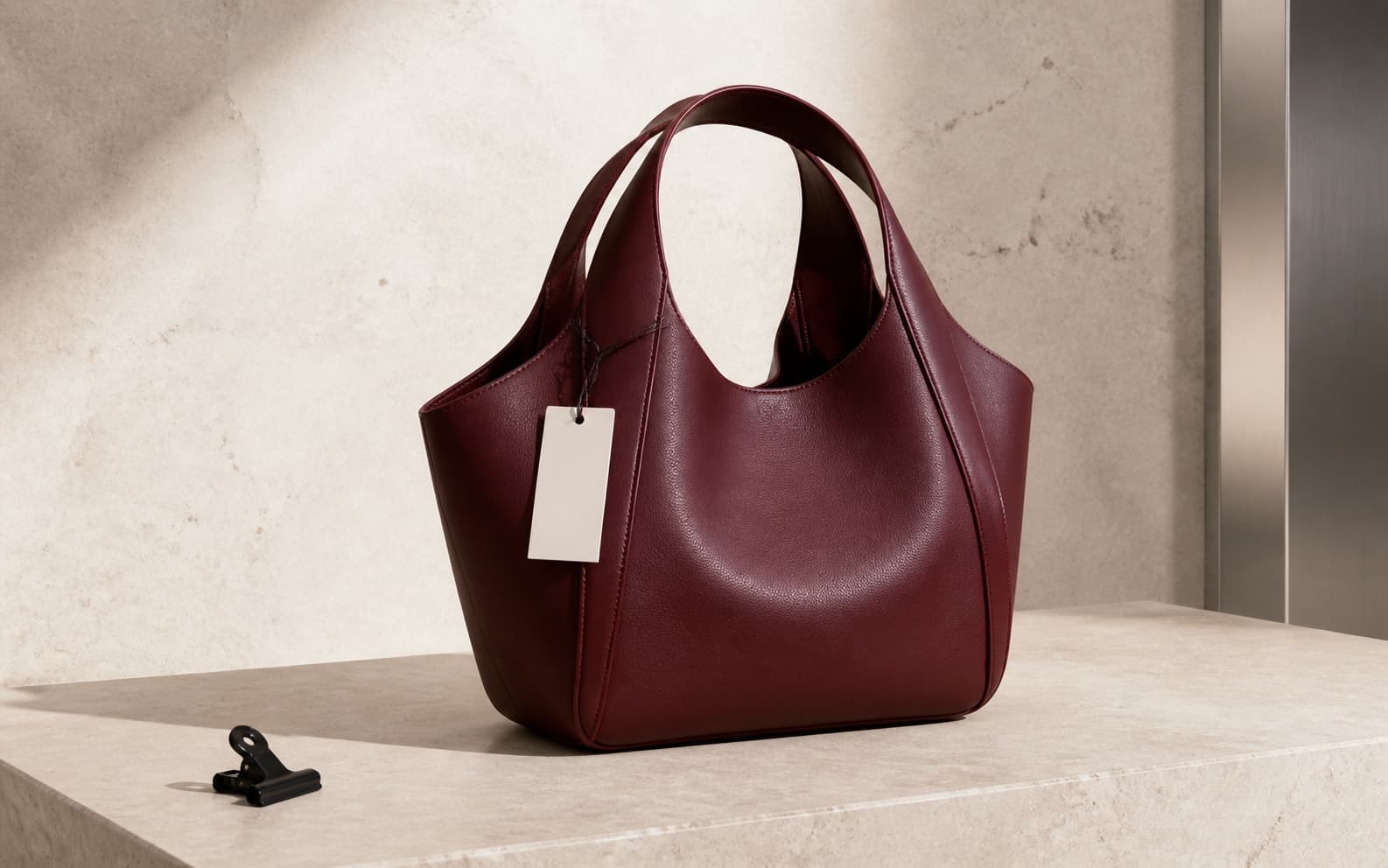
Remove tags, packaging clips, and background clutter.
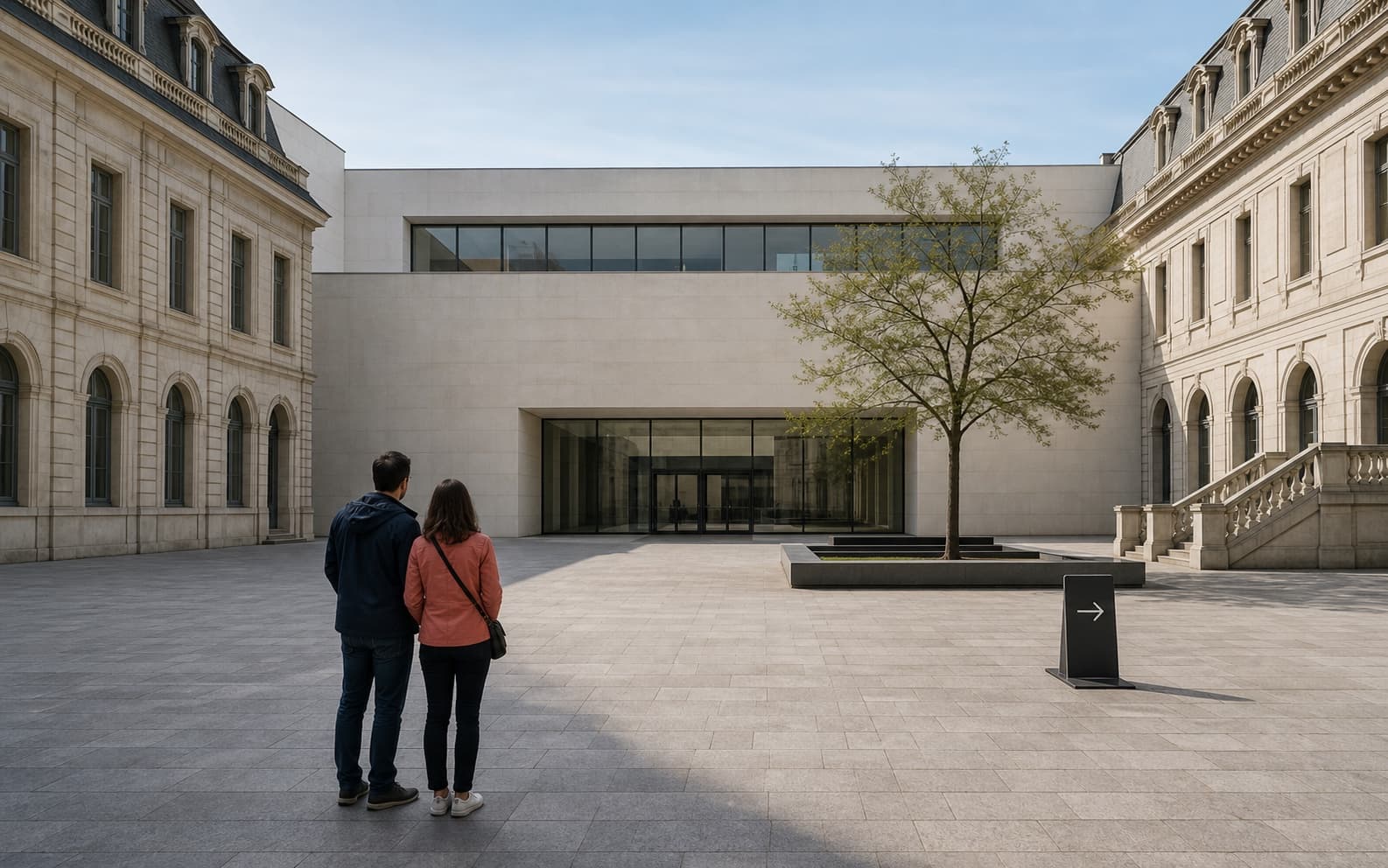
Remove tourists and temporary signs.
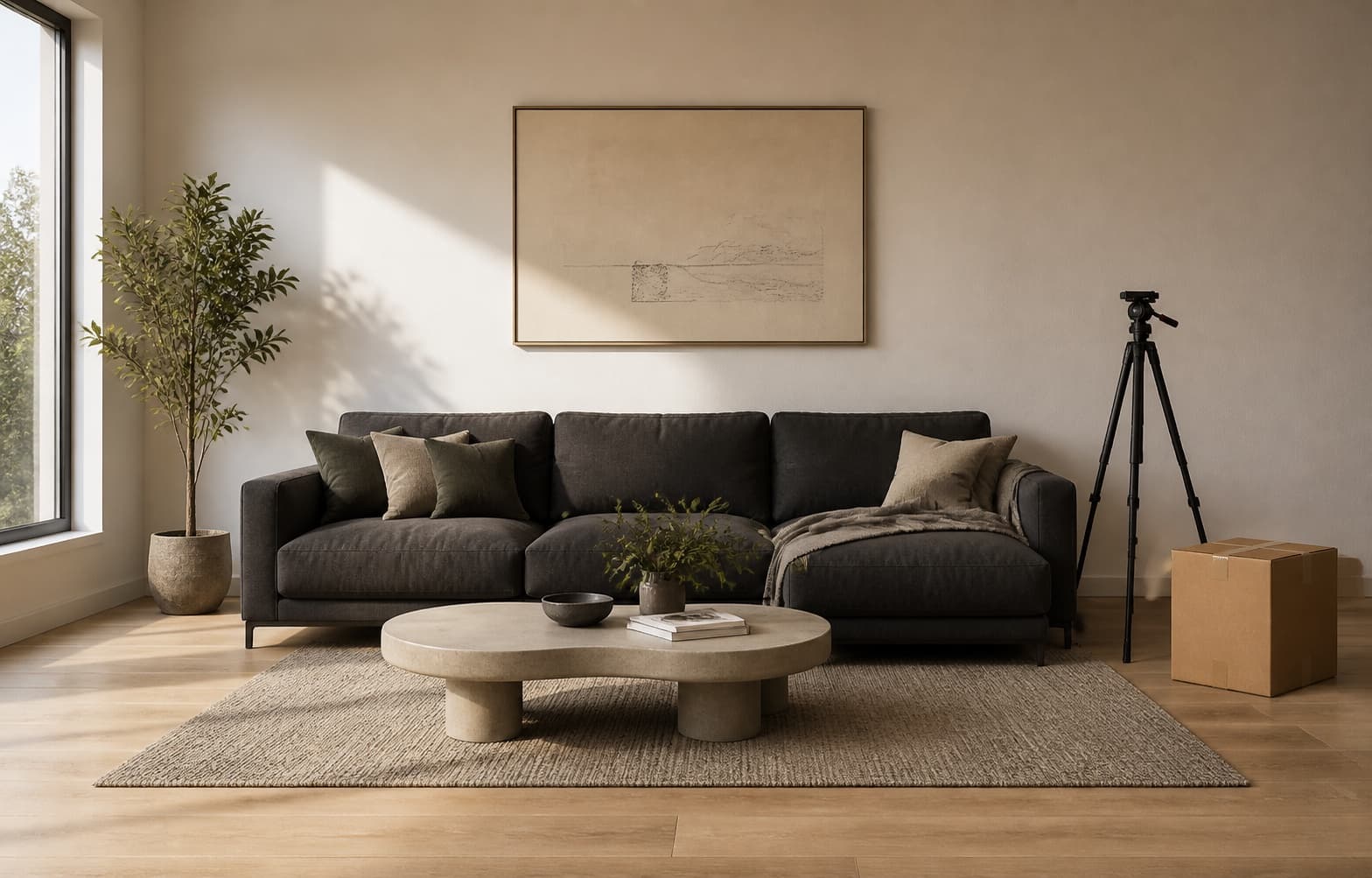
Remove tripods, boxes, and indoor clutter.
Why Pay
After the first cleanup, the next brush action continues from the latest result.
Each account gets one successful cleanup free. After that, only successful cleanups use 20 credits and failures are refunded automatically.
Server-side keys, upload limits, mask limits, and request limits are enabled by default.
Pricing
Free
$0
1 successful cleanup per account
Launch Pack
$4.99
one time · 25 successful cleanups
Studio
$29
monthly · for creators
Security
The browser uploads only a working copy and a mask. The fal.ai key stays on the server. The route validates file type, file size, selected area, and hourly request volume to reduce abuse.
The browser never receives the fal.ai key.
Only workspace-exported PNG images and masks are accepted.
Per-account and source limits protect free uses and credit balances from abuse.
FAQ
Each account gets one successful cleanup free. If the AI request fails, that free use remains available.
You can upload and brush without an account. Sign in inside the workspace only when you confirm the AI cleanup; your photo and selection stay in place.
For signed-in usage, one successful AI cleanup request costs 20 credits. Uploading, brushing, clearing a mask, and failed requests do not count as a successful removal.
Yes, when the background around the person gives the AI enough context. Large subjects or heavy overlap may require smaller passes and can produce less predictable results.
You can remove a sign or text that you are authorized to edit. Cover the full hard edge; do not use the tool to strip ownership marks from content you do not control.
The editor downloads a PNG from a 1200 × 760 working canvas and does not add a less.pictures watermark.
Use the AI removal guide for overlaps, shadows, texture, and multi-pass cleanup.