
How to Remove a Person from a Photo (Free, No Photoshop)
Removing a person is usually less about the erase button and more about the selection. Brush too tightly and you leave a shoe, a shadow, or a strip of clothing behind. Brush too widely and the tool has to invent more background than necessary.
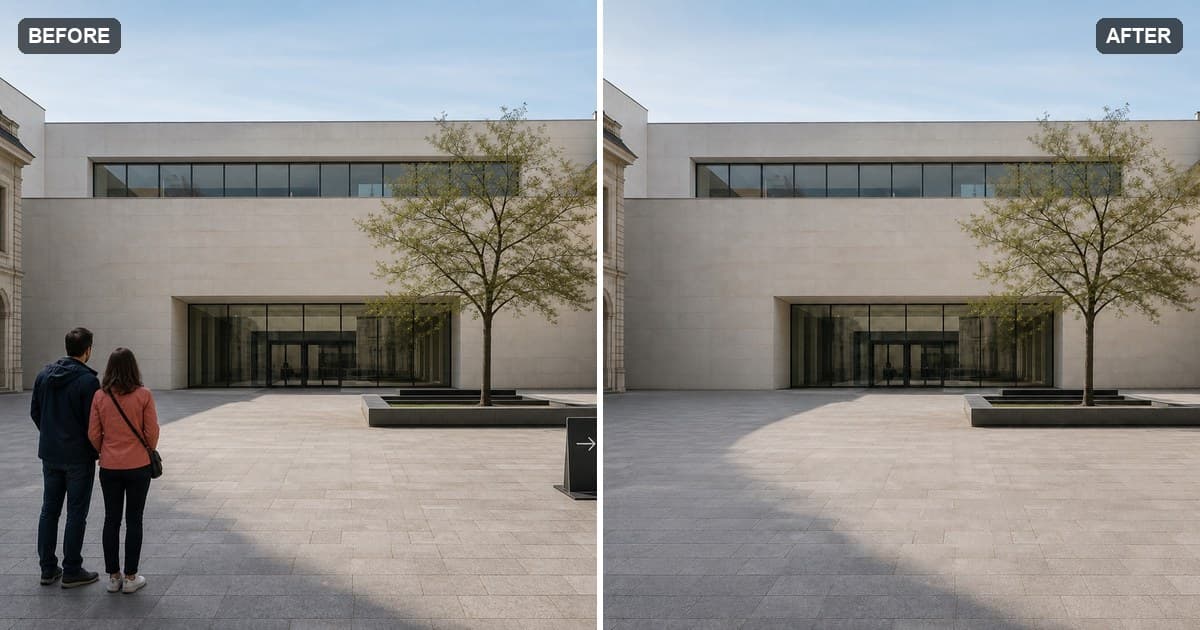
The courtyard example above is a good, honest test. The couple stood on repeating stone with plenty of empty paving around them, so the missing area could be rebuilt cleanly. We removed the couple and the sign in separate passes rather than asking one large selection to solve both jobs.
You can try the same workflow in the object remover. Uploading and brushing happen before sign-in, so you can prepare the selection first.
How to remove a person from a photo
1. Upload the photo and look behind the person
Before you pick up the brush, look at what the person covers. A plain wall, sky, sand, grass, or repeating pavement gives the tool useful clues. A face, a fence, or half of another person is a much harder reconstruction.
less.pictures accepts JPG, PNG, WebP, HEIC, and HEIF files up to 30 MB. It prepares a 1200 × 760 working canvas and downloads the result as PNG, so keep your original file if its native resolution matters.
2. Brush the whole person, not just the obvious part
Cover the body, hair, loose clothing, and anything they are carrying. Add a narrow margin around the outline, but leave as much real background visible as you can.
The spots people most often miss are:
- the shadow under or beside the person;
- the gap between the legs;
- shoes where they meet the ground;
- a bag strap, leash, umbrella, or other connected object.
If the person touches someone you want to keep, reduce the brush size near the shared edge. That boundary matters more than making the rest of the mask perfectly neat.
3. Run one cleanup and check the joins
Sign in when you are ready to confirm the cleanup. Each account gets one successful cleanup free. Use the compare control afterward and look at the places where the generated area meets the original photo: floor lines, horizons, door frames, hair, and hands.
A completed cleanup counts as a use even when you decide the result needs another pass. A provider failure is different: the free use is restored, or the 20-credit charge is refunded automatically.
4. Repair the smallest area that still looks wrong
Do not repaint the entire person-sized area just because one edge is awkward. Brush only the broken paving line, leftover shadow, or repeated texture. The next cleanup starts from the latest result, which makes a small correction easier to judge.
Removing several people from a picture
Treat separate people as separate jobs. Start with the person who has the cleanest background around them, review that result, and then move to the next. One huge mask across a crowd removes useful context and usually produces a less predictable fill.
For a group photo, the difficult case is someone whose body overlaps a person you want to keep. Preserve the keeper's outline first. If the overlap covers a face or a large part of the body, the tool has no hidden original to recover; it can only generate a plausible replacement from what remains visible.
When the edit is likely to work well
The best candidates are people surrounded by a consistent surface: open sky, water, lawn, sand, a simple wall, or a repeating floor. Straight architectural lines can also work, but inspect them carefully because even a small bend is easy to notice.
Large foreground subjects and busy crowds are the opposite. There may not be enough evidence in the photo to reconstruct what should be behind them. In those cases, a different crop may look more natural than repeated cleanup attempts.
If the distraction is a date, caption, or label rather than a person, use the separate guide to remove text from a photo. For signs, cables, and other objects, see the broader object-removal guide.
Common questions
Can I remove someone from a photo on my phone? Yes. The editor runs in a mobile browser and accepts iPhone HEIC and HEIF photos as well as JPG, PNG, and WebP files. A detailed shared edge is easier to brush on a larger screen, but the workflow is the same.
Is the person remover free? The first successful cleanup on each account is free. After that, a successful cleanup uses 20 credits. Uploading and brushing do not use credits, and provider failures are compensated automatically.
Will the tool reveal the real background? No. It generates a plausible continuation from the visible surroundings; it cannot uncover pixels that were hidden behind the person.
Does less.pictures add a watermark? No. The downloaded PNG does not include a less.pictures watermark. Only edit photos you own or have permission to change.
Open the object remover, add your photo, and make the first selection yourself.