
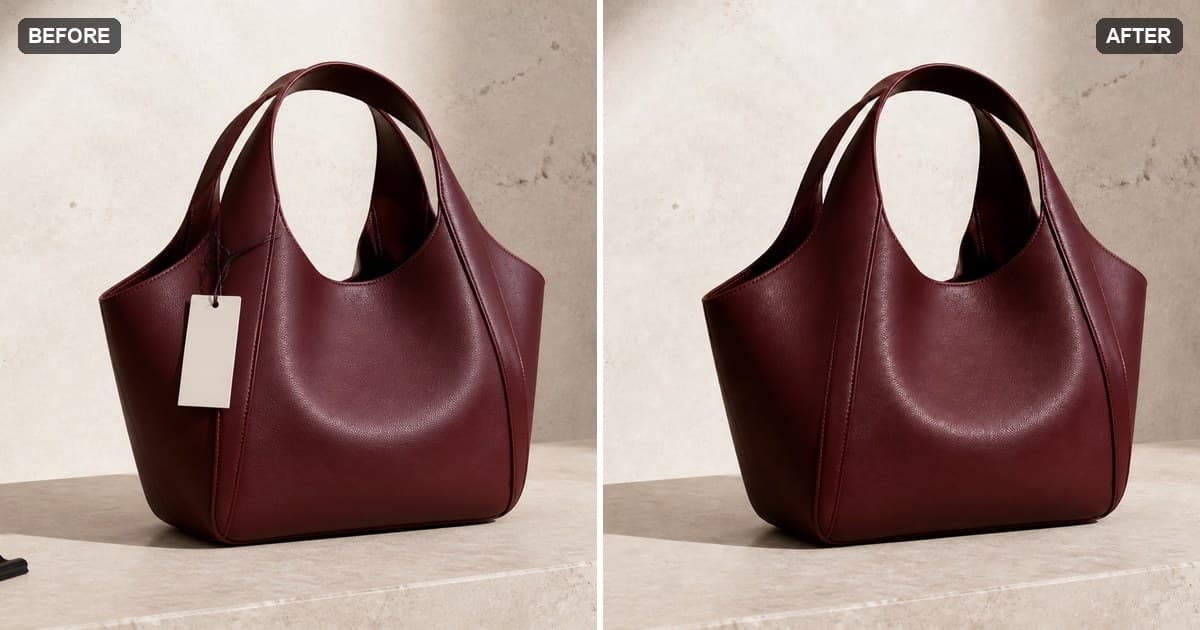
How to Clean Up Product Photos for Your Online Store
Product photos sell. Listings with clean, consistent images convert better, and buyers read clutter as carelessness. But reshooting an entire catalog because of a price tag, a clip, or a dusty shelf is expensive and slow.
AI cleanup fixes the shots you already have. This guide is for sellers who need listing-ready photos fast, using less.pictures, a browser-based AI cleanup tool with a free first cleanup.
What to remove from a product photo
Walk through your current listings and you'll find the same offenders everywhere:
- Price tags and labels, including the string or pin holding them
- Clips, stands, and props used to position the product
- Dust, fingerprints, and smudges on glossy surfaces
- Background clutter: boxes, cables, other products, the edge of the table
- Reflections of you or your phone in shiny packaging
Every one of these is a brush-and-clean job. Here's the workflow.
Step 1: Start from your best original
Pick the highest-resolution version of each photo. Marketplaces downscale for display, but the cleanup AI benefits from detail: more pixels means better texture reconstruction. Upload the original to the cleanup tool, not the compressed copy from your store backend.
Step 2: Remove tags, clips, and props first
Brush over each tag or clip, including where it attaches to the product and any shadow it casts. These objects usually sit against a plain surface or the product itself, both of which rebuild well.
For a tag hanging off a handle or strap, cover the string too. A leftover thread of string is the most common miss.
Step 3: Clean the background
Brush the clutter at the edges: the box in the corner, the cable trailing out of frame, the seam where the table meets the wall. Work in sections for large areas. Each cleanup continues from the latest result, so you can clear a whole background in a few passes.
Step 4: Polish the product surface
Smudges and dust spots on the product itself are small, precise removals. Zoom in, shrink the brush, and tap each spot. Keep the selection just wider than the mark so the AI matches the product's finish.
Step 5: Compare and export
Flip between the original and the result before downloading. Check the product outline first: edges are where buyers will notice problems. Export as PNG for the cleanest result, then upload to your store.
Keep a consistent look across the catalog
The biggest visual upgrade for a store is not any single photo; it is consistency. After cleanup, your products should share the same background tone, framing, and light direction. Cleanup gets you there faster than reshooting: fix the worst photo in each listing first, then standardize the rest as you go.
Frequently asked questions
Will cleanup change how the product looks? Only the areas you brush are regenerated. The product itself stays untouched as long as your selection doesn't cover it, so colors, logos, and textures remain accurate, which matters for returns and disputes.
Can I clean up photos my supplier sent me? Yes, that's one of the most common uses. Supplier photos often have watermarks, tags, or busy backgrounds.
How many photos can I process? The first successful cleanup is free. After that, cleanups run on credits, so a full catalog pass costs a few dollars depending on volume.
What about marketplace image requirements? Cleaned photos export as full-quality PNGs, which you can convert or resize to whatever your marketplace asks for. The cleanup itself doesn't add compression or watermarks.
Ready to upgrade your listings? Open the cleanup tool and fix your first product photo free.